← The full list of articles

How to add an RSS feed.

To get the most out of the app, follow a few steps — they’ll help you set everything up properly.

In brief
  1. Open the app settings and find the “Feeds” section.
  2. Click “Create feed” → “Configure manually.”
  3. Choose the feed type — RSS — and enter the feed address.
  4. Adjust extra options if needed and save.
1

Open the “Feeds” section.

First, open the app settings and find the “Feeds” section.
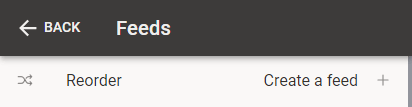
App settings → “Feeds” section
2

Click “Create feed.”

Click “Create feed” — the add wizard opens.

3

Choose “Configure manually.”

In the add wizard, choose “Configure manually.”
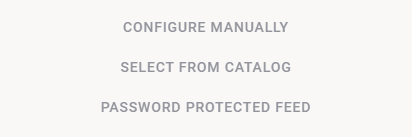
The add wizard: “Configure manually”, “Select from catalog”, “Password protected feed”
4

Choose the feed type — RSS.

From the list of feed types, choose RSS. The available types may vary.
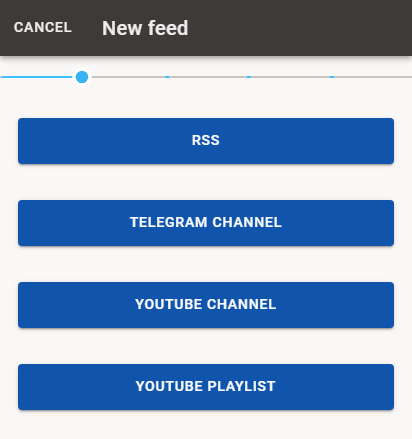
Choose the feed type — RSS
If you need other feed types — for instance, “Password-protected feed” — see the separate article: How to add a password-protected feed.

The catalogue may also list pre-configured feeds that cannot be created in the app. Browse them and choose one if it fits.

5

Enter the RSS feed address.

After choosing the type, enter the RSS feed address.
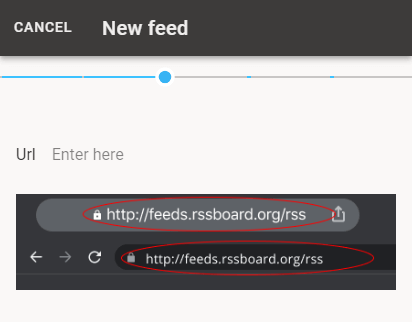
“Url” field and the address in the browser bar

Often you can find this address yourself on the site you need. If you have trouble finding the address, try our search algorithm.
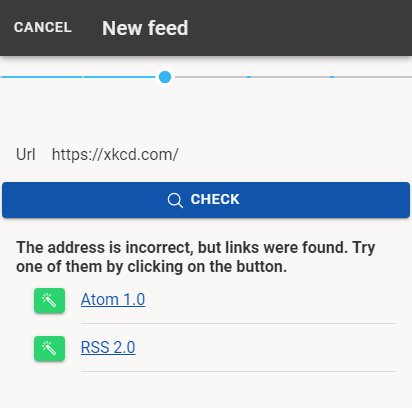
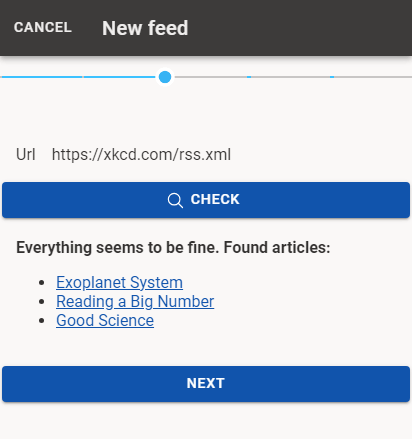
The check result: Atom 1.0 and RSS 2.0 links found for the site address
If nothing works — contact the site owner and ask whether they have an RSS feed. You can also ask them to add one. If you are stuck, write to us — we will try to find a solution, possibly for an extra fee.
A verified address with the articles found and the “Next” button
6

Set extra settings.

Once the RSS address is verified, you can set extra settings. You can change them later too.
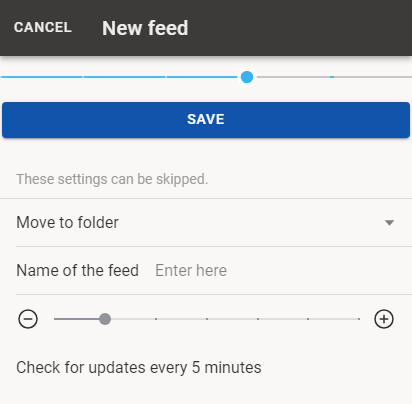
Extra options: folder, feed name and update frequency
7

Save — a timer appears.

After you save the feed, you will see a countdown until the first check.
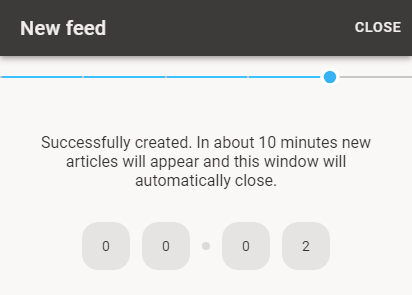
Timer after saving the feed

This window closes automatically, but you can also close it manually and continue adding more feeds.

In the meantime, the app is fetching new articles, and they will appear shortly.

Got questions? Write to us.

If you have any questions or problems — please write to us. We’ll be glad to help.

support@readine.app →
Next article · II
How to add a password-protected feed
→

All articles →