← All articles

How to add a password-protected feed.

To get the most out of the app, please take a few short steps — they will help you set everything up correctly.

Updated Apr. 2026
In brief
  1. Open settings and go to “Password-protected feeds.”
  2. Tap “Create new.”
  3. Pick the site from the list.
  4. Follow the wizard’s steps.
1

Open the “Password-protected feeds” section.

First, open the app settings and find the “Password-protected feeds” section.

2

Tap “Create new.”

The “Create new” button launches the wizard for setting up a password-protected feed.

3

Pick the site.

Pick the site from the list on offer. The list may change.
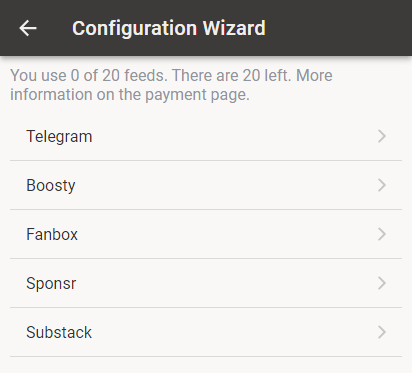
picking a site from the list
If you need ordinary feed types instead — see the separate article: How to add an RSS feed.

The catalog may also include pre-configured feeds that cannot be set up inside the app. Have a look and pick one if it suits you.

4

Follow the wizard’s steps.

Follow the wizard’s steps. They differ from site to site.

Questions.

— Why enter your login and password?

— So you can read in peace. Password-protected feeds are fetched and prepared by our server — and that server is what makes things possible that simply don’t work without one: keyword alerts, sync across devices, offline reading, and traffic measured in kilobytes rather than megabytes. Your credentials are stored encrypted and used only to bring you what’s new from that feed.

— Will those articles be visible to other users?

— No. Not to other Readine subscribers, not to ad networks, not to any “partners.” You’re a customer, not a product: we don’t sell data and we don’t show ads. At the code and infrastructure level, access to your private feeds is technically scoped to your account alone.

Got questions? Write.

If anything comes up — questions, trouble, doubts — please write to us. We’re glad to help.

support@readine.app
Previous article · I
How to add an RSS feed

All articles